Convert PSD to PNG for free, in your browser
To convert a PSD to PNG, drop the file below. It opens in the PhotopixPro editor in your browser, and File > Export > Quick Export as PNG downloads the whole image as a PNG, transparency included. Layer > Quick Export as PNG exports only the selected layer. Nothing is uploaded, and there's no sign-up and no watermark.
Drop the file here, or use the button below. Your PSD opens in the editor, ready to export as PNG.
PSD or PSB, and images such as JPG, PNG or TIFF. Never uploaded.
How to convert PSD to PNG
- Open the PSD
Drop it on the box or use the button. The editor opens with your file and its layers. The first time, your browser downloads the editor, about 11 MB.
- Pick what to export
For the whole image, go straight to step 3. For one layer, select it in the Layers panel.
- Download the PNG
Choose File > Export > Quick Export as PNG for the whole image, or Layer > Quick Export as PNG for the selected layer. The PNG goes to your downloads.
Quick Export or Export As?
Quick Export as PNG saves the whole image as a PNG straight away, with no dialog. Use it when you just need the picture.
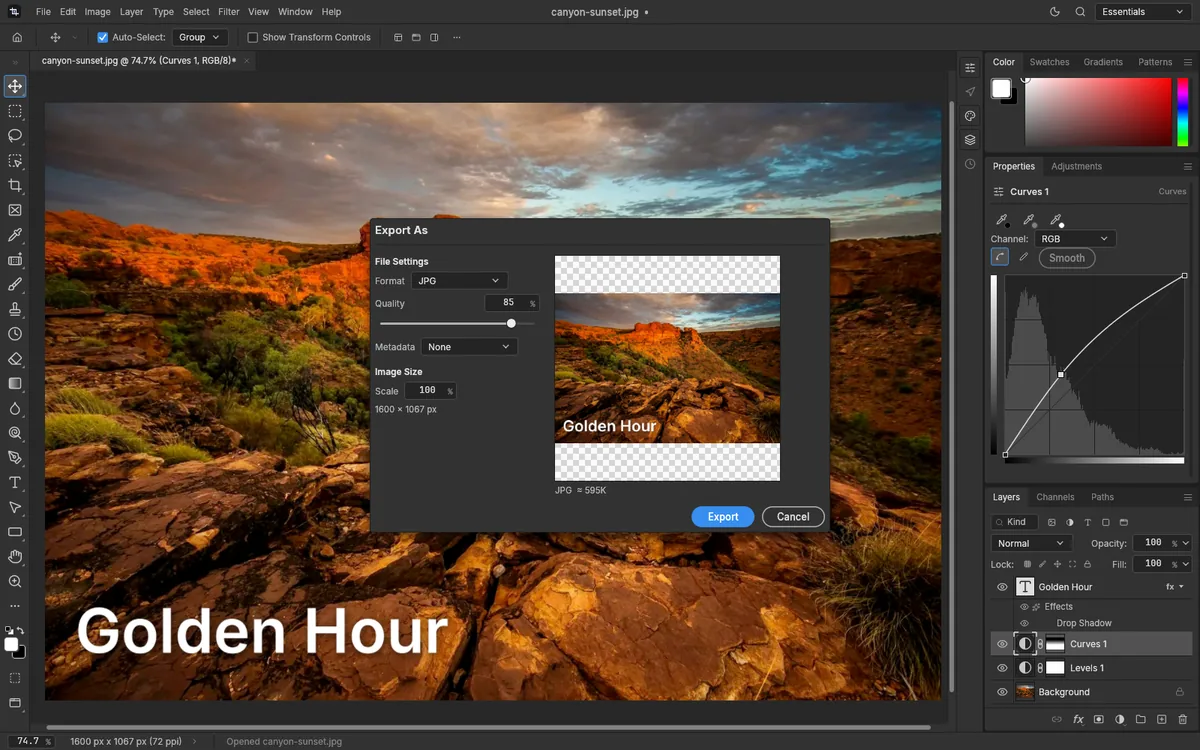
Export As… (File > Export, or Ctrl+Alt+Shift+W) opens a dialog where you can:
- keep PNG, or switch to JPG, WebP or TIFF;
- keep or drop transparency;
- scale the image, for example to half its size;
- include or leave out metadata;
- check a preview and the estimated file size before you download.
PSD to PNG: transparency and layers
Transparent areas stay transparent in the PNG, so a logo on an empty background comes out ready to place on a website or a slide. Layers are a different story: PNG is a flat format, so the visible layers are merged into one picture. Hide anything you don't want in the image before you export, and keep the PSD if you'll need the layers again. Going the other way? You can also make a PSD from a PNG.
Export one PSD layer as a PNG
To pull one element out of a PSD, such as a logo or a cut-out product:
- In the Layers panel, select the layer you want.
- Choose Layer > Quick Export as PNG (Ctrl+Shift+').
- Select the next layer you need and repeat.
The PNG downloads straight away, named after the layer. It holds only that layer, trimmed to its content, with a transparent background; layers clipped to it are left out. To keep the size of the whole document instead, hide every other layer, including the background, and choose File > Export > Quick Export as PNG. The web version can't save every layer to its own file in one go: File > Export > Layers to Files… is turned off in the browser.
Why PNG
PNG is lossless: it keeps every pixel as it was, in 8 or 16 bits per channel, which suits graphics, text, screenshots and anything with transparency. The price is file size. For photos you'll send by email or put on a web page, a JPG is usually much smaller; see PSD to JPG. If you're new to the format, here's what a PSD file is and why it's bigger than both.
Frequently asked questions
How do I convert a PSD to PNG without Photoshop?
Open the PSD in a browser editor such as PhotopixPro: drop it on this page and, when the editor opens, choose File > Export > Quick Export as PNG. The PNG downloads to your computer. You don't need Photoshop, an account or any install, and the file is processed in your browser rather than on a server.
Does the PNG keep a transparent background?
Yes. PNG supports transparency, so transparent areas of your PSD stay transparent in the exported file. If you'd rather have a solid background, add one before you export: choose Layer > New Fill Layer > Solid Color… and move the new layer to the bottom of the Layers panel. It starts with the foreground color; double-click its thumbnail to pick another.
Does converting PSD to PNG lose quality?
No. PNG is lossless, so the merged image keeps every pixel as it was, in 8 or 16 bits per channel. What does change is that the PNG is flat: the layers are merged into one picture, and editable text becomes pixels. Keep the PSD if you'll need the layers again. If you need a smaller file than PNG gives you, a JPG or a lossy WebP will be lighter.
Can I save each layer of a PSD as a separate PNG?
Yes, one at a time. Select a layer in the Layers panel and choose Layer > Quick Export as PNG (Ctrl+Shift+'). You get a PNG of just that layer, named after it, trimmed to its content and with transparency. Then select the next layer and repeat. Exporting every layer to its own file in one step (Layers to Files) isn't available in the web version.
Can I convert several PSD files to PNG at once?
No. Batch processing is turned off in the web version, so you convert one file at a time: open it, export it, then open the next. That works well for a handful of files. If you need to convert hundreds automatically, a desktop tool with batch processing will suit you better.
Is my PSD uploaded when I convert it?
No. The conversion happens in your browser. The file is read from your disk, the editor creates the PNG inside the tab, and the PNG downloads straight to your computer. Our server only sends the editor itself, and the editor has no telemetry or error reporting that could send your image anywhere.
How do I convert a PSD to PNG on a Mac?
There are two ways. In a desktop browser, use this page: the PSD opens with its layers, and you can export the whole image or only the layers you choose; we haven't tested it on a Mac yet. Without extra software, Adobe says Preview can open and view PSD files, and Apple's Preview guide explains how to save a PNG copy with File > Export.
Why is my PNG file so large?
PNG is lossless, so it keeps every pixel exactly, and a large image becomes a large file. To make it smaller, scale the image down in Export As…, or choose JPG, or WebP with Lossless unchecked, and lower the quality. Export As… shows the estimated file size before you download, so you can compare the options.
Other tools
- Open PSD online See every layer, mask and text of a PSD file without Photoshop.
- Edit PSD online Change text, layers and colors in a PSD, then save it again.
- Edit PNG or JPG Crop, resize, retouch and add text to a PNG or JPG, then export it again.
- PSD to JPG Turn a PSD into a smaller JPG at the quality you choose.
- HEIC to JPG Turn HEIC photos into JPG without uploading them anywhere.
- Open RAW online Open CR2, NEF, ARW and DNG photos, adjust them and export a JPG.
- PNG to PSD Turn a PNG or JPG into a PSD, keeping a PNG's transparency, and add layers on top.
Related guides
- Open PSD without Photoshop Ways to open a PSD on Windows, Mac, Chromebook and phones.
- What is a PSD file What a PSD stores, how it differs from PNG and JPG, and how to open one.
- Layers for beginners Add, rename, reorder, group and merge layers, with opacity and blend modes.
- Layer masks What layer masks and clipping masks do, and how to add, paint and apply a mask.
- Curves and Levels What Curves and Levels do, when to use each, and how to keep them editable.

Turn your PSD into a PNG
Open the editor, drop the PSD in and export. Your file stays on your computer.