Convert PSD to JPG for free, in your browser
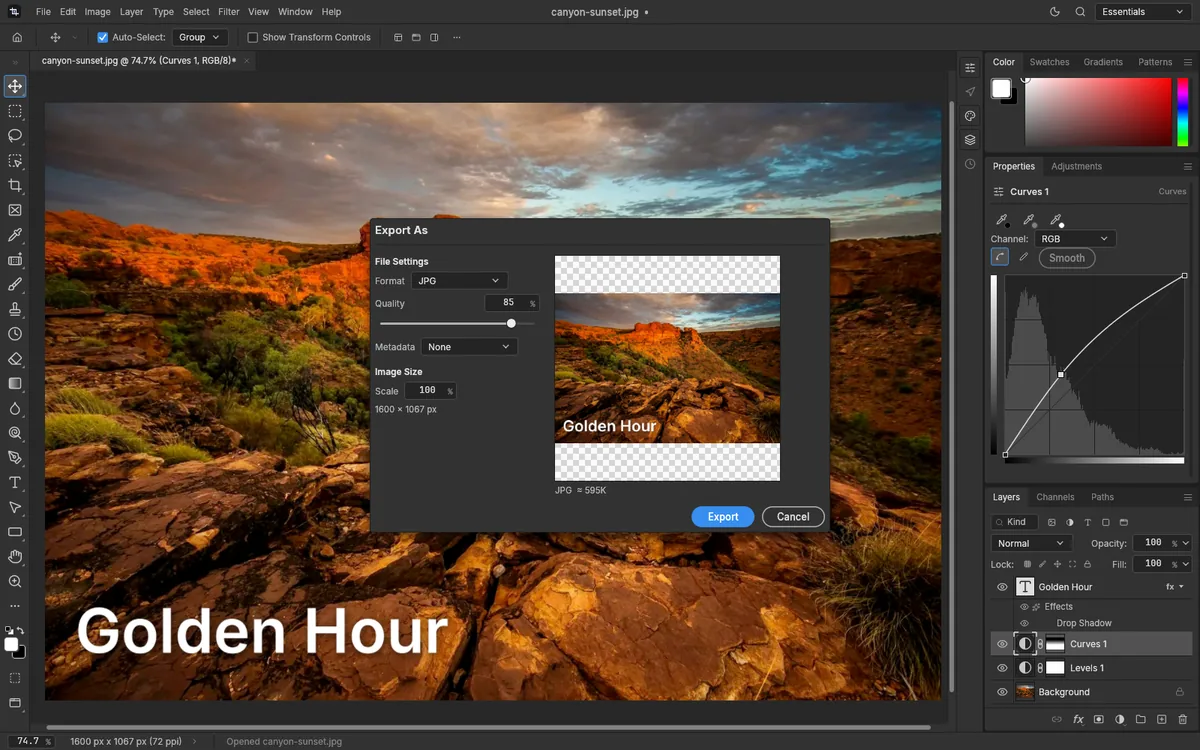
To convert a PSD to JPG, drop the file below. It opens in the PhotopixPro editor in your browser, and the Export As window opens by itself with JPG selected: set the quality while you watch the estimated file size, and export. Nothing is uploaded, and it's free, with no sign-up and no watermark.
Drop the file here, or use the button below. Your PSD opens in the editor with the Export As window ready.
PSD or PSB, and images such as PNG, WebP or TIFF. Never uploaded.
How to convert PSD to JPG
- Open the PSD
Drop it on the box or use the button. It opens in the editor, and the Export As window opens by itself. The first time, your browser downloads the editor, about 11 MB.
- Choose JPG
The window opens with JPG selected; if it isn't, pick JPG in Format. If the window didn't open, go to File > Export > Export As… (Ctrl+Alt+Shift+W).
- Set the quality and export
Quality starts at 85. Check the preview and the estimated size, then click Export.
Picking the JPG quality
JPG keeps files small by discarding detail you mostly won't notice. The Quality slider in Export As… decides how much:
- 85, the default, is a sensible starting point for photos on the web or by email.
- Higher keeps more detail and makes a bigger file.
- Lower makes a smaller file, but edges and smooth gradients start to look blocky.
The dialog updates the estimated file size as you move the slider. In our tests, a 1280 × 1278 pixel image came out at 233 KB with the default quality.
Need a smaller file?
If you have a size limit, such as a form that only takes JPG files under 100 KB:
- In Export As…, scale the image down first. Fewer pixels reduce the file size the most.
- Then lower the quality until the estimated size fits.
- Check the preview for blocky edges before you click Export.
What you lose going from PSD to JPG
- Layers are merged into one image, as you see it on screen. To leave a layer out, close Export As, hide that layer in the Layers panel and export again. A JPG can't hold layers, so keep the PSD for later edits.
- Transparency is lost, because JPG doesn't support it: transparent areas come out white. If you need to keep it, export a PNG instead.
- Some detail goes to compression. Each time a JPG is edited and saved again it loses a little more, so edit the PSD and export a fresh JPG.
JPG, PNG or WebP?
| Format | Transparency | File size | Good for |
|---|---|---|---|
| JPG | No | Small | Photos for email, web pages and upload forms |
| PNG | Yes | Large | Logos, graphics, screenshots and cut-outs |
| WebP | Yes | Small to large | Web pages that accept WebP |
In Export As…, WebP starts out lossless, which gives larger files. Clear the Lossless checkbox to get a Quality slider like JPG's. If you're unsure what a PSD holds compared with these formats, see how a PSD differs from JPG and PNG.
Frequently asked questions
How do I convert a PSD to JPG without Photoshop?
Drop the PSD on this page to open it in the PhotopixPro editor. The Export As window opens by itself with JPG selected: set the quality and click Export. If it doesn't open, use File > Export > Export As… instead. The JPG downloads to your computer. It all happens in your browser, so there's nothing to install, no account to create, and the file isn't uploaded.
Can I keep the layers when I convert to JPG?
No. JPG is a flat image format and can't store layers, so all visible layers are merged into one picture. If you need the layers later, keep the PSD. If you need one layer as a separate image, select it and choose Layer > Quick Export as PNG, as explained on PSD to PNG.
How do I make the JPG smaller than 100 KB?
Scale the image down in Export As… first, then lower the quality until the estimated size is under 100 KB. If edges turn blocky before you get there, scale the image down further instead of lowering the quality again: a smaller, cleaner picture usually looks better than a heavily compressed one. Keep the PSD in case you need a bigger version later.
What happens to transparent areas in a JPG?
They turn white. JPG can't store transparency, so Export As fills those areas with white, blends semi-transparent edges with it and has no option for another color. For a different color, add a Solid Color fill layer (Layer > New Fill Layer > Solid Color…) at the bottom of the stack and double-click its thumbnail to pick the color. To keep transparency, export a PNG.
Can I convert a large PSD to JPG?
It depends on your computer's memory. We've saved and reopened a 98 MB PSD with three 4000 × 3000 pixel layers and exported it as a 28 MB PNG in about 6 seconds. The tab may not respond while a large export runs, so wait for the download before clicking again. We haven't tested PSD files larger than about 100 MB yet.
Can I convert several PSDs to JPG at once?
No. Batch processing is turned off in the web version, so it's one file at a time: open, export, then open the next. That's fine for a few files. For hundreds of files, a desktop app with batch processing is the better tool.
Is it free, and does the JPG get a watermark?
It's free, with no account, no paid plan and no ads. The JPG has no watermark and nothing added to it, and you can convert as many files as you like. The conversion happens in your browser, so both your PSD and the JPG stay on your computer.
Other tools
- Open PSD online See every layer, mask and text of a PSD file without Photoshop.
- Edit PSD online Change text, layers and colors in a PSD, then save it again.
- Edit PNG or JPG Crop, resize, retouch and add text to a PNG or JPG, then export it again.
- PSD to PNG Export a PSD, or only some of its layers, as a PNG with transparency.
- HEIC to JPG Turn HEIC photos into JPG without uploading them anywhere.
- Open RAW online Open CR2, NEF, ARW and DNG photos, adjust them and export a JPG.
- PNG to PSD Turn a PNG or JPG into a PSD, keeping a PNG's transparency, and add layers on top.
Related guides
- Open PSD without Photoshop Ways to open a PSD on Windows, Mac, Chromebook and phones.
- What is a PSD file What a PSD stores, how it differs from PNG and JPG, and how to open one.
- Layers for beginners Add, rename, reorder, group and merge layers, with opacity and blend modes.
- Layer masks What layer masks and clipping masks do, and how to add, paint and apply a mask.
- Curves and Levels What Curves and Levels do, when to use each, and how to keep them editable.

Turn your PSD into a JPG
Open the editor, drop the PSD in and export it at the quality you need.