What a layer mask is
Think of the mask as a stencil laid over the layer. White means "show", black means "hide", and gray, between the two, makes the layer partly see-through. Nothing is deleted: the pixels are still there under the black, which is why a mask is safer than the Eraser Tool. You can change your mind as often as you like.
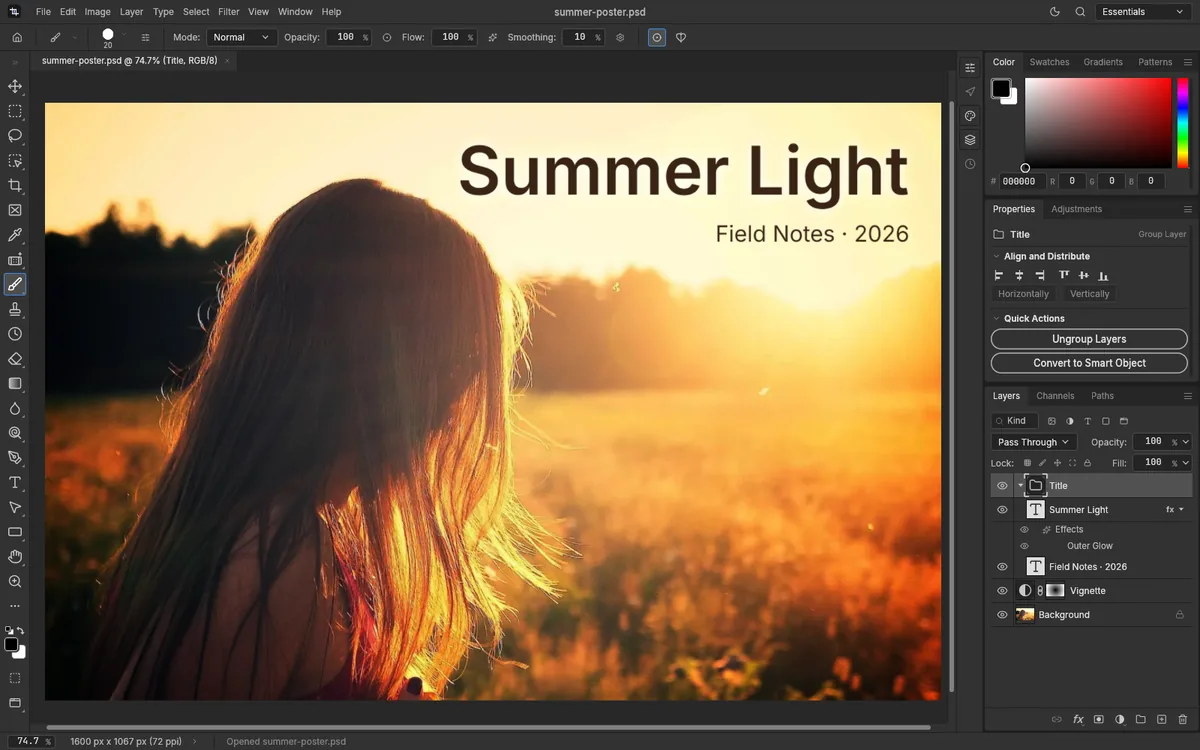
In the Layers panel, a layer with a mask has two thumbnails: the layer's own, and the mask's, next to it. If the Layers panel is new to you, start with our beginner's guide to layers.
A layer mask decides, pixel by pixel, how much of its layer you see.
- Layer The photo you want to blend or cut out
- Layer mask White on the left shows the layer; black on the right hides it
- Result The photo fades into transparency where the mask turns black, and no pixel is erased
Add a layer mask
- In the Layers panel, select the layer you want to mask.
- Click Add a mask, the third button at the bottom of the panel, or choose Layer > Layer Mask > Reveal All. A white mask thumbnail appears next to the layer, and the picture looks the same as before.
To mask from a selection, make the selection first, for example with Select > Subject or the Rectangular Marquee Tool (M), then click Add a mask: what's selected stays visible and the rest is hidden. To start the other way around, Layer > Layer Mask > Hide All adds a black mask that hides the whole layer, and you paint back what you want in white. With a selection active, Layer > Layer Mask > Hide Selection hides only the selected area.
The Background layer of a photo can't have a mask, so Layer > Layer Mask is grayed out when it's the only layer. Click Add a mask anyway and the editor first turns the Background into a normal layer called Layer 0. You can also copy it with Layer > New > Layer via Copy (Ctrl+J) and mask the copy.
Paint on the mask
- Choose the Brush Tool (B). Adding a mask sets the colors to white in front and black behind.
- Press X to swap them, so black is in front. Change the brush size with ] and [.
- Paint over what you want to hide. The layer disappears where you paint, and the stroke shows up in the mask's thumbnail. If there's nothing below, you see the checkerboard of transparency.
- Press X again to paint in white and bring back anything you hid by mistake.
Press D at any time to go back to white in front and black behind.
Check, invert, soften or turn off the mask
- See the mask itself: Alt+click its thumbnail. The canvas shows the mask in black and white; Alt+click again to go back to the picture.
- Turn it off for a moment: Shift+click the thumbnail. A red cross appears on it and the whole layer shows; Shift+click again to turn it back on. The menu equivalent is Layer > Layer Mask > Disable Layer Mask.
- Invert it: with the mask selected, press Ctrl+I. What was hidden now shows, and the other way around; the layer's pixels don't change. Properties also has an Invert button.
- Soften the edge: with the mask selected, raise Feather in the Properties panel. In our test, 10 px turned a hard edge into a soft fade about 54 px wide.
- Let some of the hidden part show: lower Density in the same panel. At 50%, what the mask hides shows at half strength. Neither setting changes the mask itself: set Feather back to 0 px and Density to 100% and it's exactly as it was.
Apply or delete the mask
- Layer > Layer Mask > Apply makes the mask permanent: it disappears, and the hidden parts of the layer become transparent pixels. Edit > Undo (Ctrl+Z) brings the mask back if you change your mind straight away. To save the cut-out on its own, with a transparent background, use Layer > Quick Export as PNG, as our PSD to PNG page explains.
- Layer > Layer Mask > Delete removes the mask and shows the whole layer again. It doesn't ask for confirmation.
Right-click the mask's thumbnail for the same commands: Disable Layer Mask, Delete Layer Mask and Apply Layer Mask.
Masks on adjustment layers
Every adjustment layer comes with its own mask, so you can brighten or darken just part of a photo:
- Choose Layer > New Adjustment Layer > Curves… A layer called Curves 1 appears, with a white mask.
- In the Properties panel, drag the middle of the curve down. The whole photo gets darker.
- Click the white mask thumbnail of Curves 1. Properties now shows Layer Mask.
- With the Brush Tool and black in front, paint over the part that should stay as it was. The adjustment stops working there.
In our test, the area we painted went back to the brightness of the original photo, while the rest stayed darker. To change the curve again, click the adjustment's own thumbnail, not the mask's. Our Curves and Levels guide covers the adjustments themselves.
Clipping masks
A clipping mask works differently: it shows a layer only where the layer below it has pixels. Put a photo above a text layer and clip it, and the photo shows only inside the letters. The layer below acts as the mask, so you change the shape by editing that layer.
To make one, put the layer you want to clip directly above the base layer, select it and choose Layer > Create Clipping Mask (Ctrl+Alt+G), which is also in a layer's right-click menu. In the Layers panel, the clipped layer moves slightly to the right, with a small arrow beside it. Clipping masks in PSD files open as they were made.
Layer mask vs clipping mask
| Compared item | Layer mask | Clipping mask |
|---|---|---|
| What decides what shows | The mask's own black and white | The shape of the layer below |
| Where it lives | On the layer, as a second thumbnail | In the layer below, which acts as the shape |
| Good for | Hiding, fading or blending part of one layer | A photo inside text or a shape |
| How to add it | Add a mask, or Layer > Layer Mask > Reveal All | Layer > Create Clipping Mask |
A layer can have both: a layer mask of its own, and a clipping relationship with the layer below.
How we checked this guide
We tested the layer mask steps on October 17, 2026, in Chromium, on a photo: adding a mask, painting in black and white, Shift+click, Alt+click, inverting, applying, deleting and undoing. We also limited a Curves adjustment layer with its mask and measured the result, made a clipping mask with Layer > Create Clipping Mask, and opened PSD files that already had clipping masks. We also made masks from a selection (Select > Subject and a rectangle), with Hide All and with Hide Selection, and measured Feather and Density in the exported image. We didn't test Alt+click on Add a mask, which makes an inverted mask.
