Edit PSD files online with a free PSD editor
You can edit a PSD online here without Photoshop. Drop the file below and it opens in the PhotopixPro editor with its layers, masks and text. Change the text, hide or move layers and adjust colors, then save it as a PSD or export a PNG or JPG. It's free, there's no account, and the file stays on your computer.
Drop the file here, or use the button below. Your PSD opens in the editor, ready to edit.
PSD or PSB, and images such as JPG, PNG or TIFF. Never uploaded.
How to edit a PSD file online
- Open the PSD
Drop it on the box or use the button. It opens in the editor with all its layers. The first time, your browser downloads the editor, about 11 MB.
- Make your changes
Edit text with the Horizontal Type Tool (T), hide or reorder layers in the Layers panel, and remove small spots with the Spot Healing Brush Tool.
- Save your work
File > Save downloads a PSD that keeps your layers. For an image to share, use File > Export > Export As…
What you can edit in a PSD file
The tools you'd use for a quick PSD edit are all there, under the same names as in Photoshop:
- Text: select a text layer with the Horizontal Type Tool (T) and type. See the note on fonts below.
- Layers: hide, reorder or group them, change opacity or blend mode (all 27 Photoshop blend modes are there), merge with Ctrl+E or duplicate with Ctrl+J. New to layers? See how layers work, step by step.
- Colors and tone: 16 kinds of adjustment layer under Layer > New Adjustment Layer, including Curves, Levels, Hue/Saturation, Color Balance and Black & White. We've tested Curves and Levels: a new one comes with its mask, its controls appear in the Properties panel and the photo updates as you change them. The ones already in your PSD can be changed there too, and the change is kept when you save the PSD and open it here again. Here's how to use Curves and Levels.
- Masks: layer masks, vector masks and clipping masks (Layer > Create Clipping Mask, Ctrl+Alt+G). Our guide to using layer masks covers painting, inverting and applying them.
- Size and shape: the Crop Tool (C), Edit > Free Transform, Image > Image Size… and Filter > Liquify…
- Retouching: the Spot Healing Brush Tool, the Clone Stamp Tool and Edit > Content-Aware Fill…, all without AI.
- Selections: Select > Subject, Select > Sky and the Magic Wand Tool, also without AI.
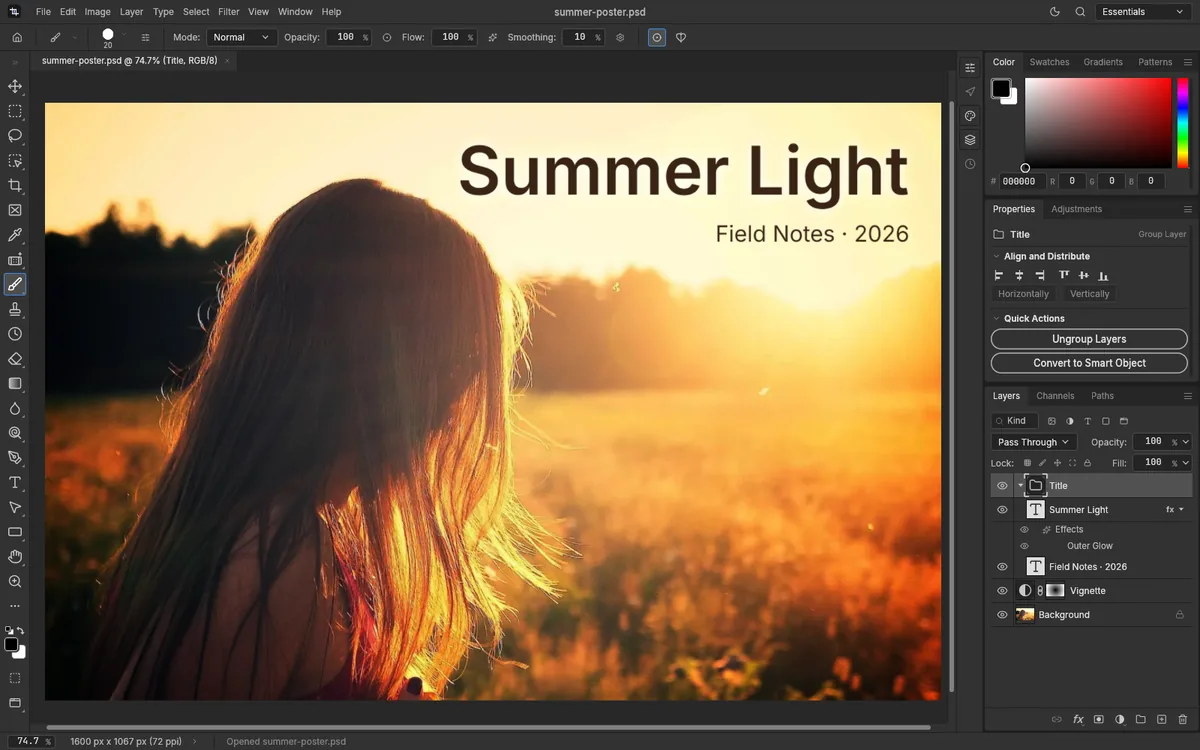
Editing the text in a PSD
Text layers in a PSD stay editable here. The catch is fonts. On the web, PhotopixPro has two fonts, Inter and JetBrains Mono, and it can't use the fonts installed on your computer. If your PSD uses another font, such as Arial or Futura, the editor warns you when the file opens, and the text may switch to a substitute font when you edit it.
In practice: if the PSD already uses Inter or JetBrains Mono, or a substitute font is fine for you, edit the text here. If the exact font matters, change the text in an app that has that font installed, and use PhotopixPro for everything else.
Edit a PSD mockup with smart objects
In a mockup, the design sits inside a smart object, often bent to fit a screen, a box or a T-shirt. To put your own image in it:
- Open your image in the editor too, with File > Open… (Ctrl+O): it opens in its own tab. Choose Select > All (Ctrl+A) and Edit > Copy (Ctrl+C).
- Go back to the mockup and double-click the smart object's thumbnail in the Layers panel, or choose Layer > Smart Objects > Edit Contents. Its contents open in a new tab.
- Choose Edit > Paste (Ctrl+V), then fit the image with Edit > Free Transform or the size boxes in the Properties panel.
- Choose File > Save in that tab and go back to the mockup. The smart object now shows your image, with the mockup's perspective.
- Export the result with File > Export > Export As…, or save the mockup as a PSD.
File > Place Embedded… isn't available in the browser, which is why the image goes in by copy and paste. Layer > Smart Objects > Replace Contents… does load a file, but at its own size, so it won't fit the frame. We tested these steps with a sample PSD, not yet with a large commercial mockup.
Saving: PSD, PNG or JPG
- File > Save (Ctrl+S) downloads a PSD with your layers, effects and editable text. It always saves as PSD, even if you started from a JPG. You can open that PSD here again later and carry on.
- File > Export > Export As… (Ctrl+Alt+Shift+W) creates a PNG, JPG, WebP or TIFF, with a preview and an estimated file size. Exports carry no watermark.
Three things to know before you start
- Save often. There's no autosave, and the editor doesn't work offline. If the tab closes, unsaved changes are gone.
- Images from other apps can't be pasted. Copy and paste works inside the editor, but an image copied from another app or a web page won't paste. Open that image in the editor as its own document instead, then copy it from there and paste it into your PSD.
- Big files need a moment. The editor works on a single thread, so heavy steps on large documents can freeze the tab for a few seconds.
Already know Photoshop? Our list of the Photoshop shortcuts the editor uses saves you hunting through menus. Need only a PNG? Go straight to PSD to PNG. For a quick look without editing, open the PSD online instead. Leaving Photoshop for good? See how PhotopixPro works as a free Photoshop alternative.
Frequently asked questions
Can I edit a PSD file without Photoshop?
Yes. PhotopixPro, a free editor that runs in your browser, opens a PSD with its layers, masks, text and layer styles, so you can change it much as you would in Photoshop, with the same menu names and default shortcuts. Then save it as a PSD or export a PNG or JPG. There's no account, and the file isn't uploaded.
How do I change the text or font in a PSD?
Pick the Horizontal Type Tool (press T), click into the text and type, then press Ctrl+Enter to confirm. Fonts are the limit: the web editor only has Inter and JetBrains Mono. If the PSD uses another font, the editor warns you when the file opens, and edited text may switch to a substitute. When the exact font matters, use an app that has it.
Can I edit a PSD mockup with smart objects?
Yes. The editor opens smart objects, embedded and linked, so you can paste your own design into the smart object's contents, as the mockup steps above show, and the mockup keeps its perspective. Then export a JPG or PNG; the saved PSD reopens here with the smart object intact. We've tested this with an embedded smart object, not a linked one.
Is there a file size limit?
The limit depends on your computer's memory. We've saved a 98 MB PSD with three 4000 × 3000 pixel layers and reopened it. On files that size, heavy steps such as duplicating a layer can freeze the tab for a few seconds while the editor works. We haven't tested PSD files larger than about 100 MB yet.
Does the edited file get a watermark?
No. Nothing is added to the PSD you save or to the PNG, JPG or WebP you export. There's no paid version that removes anything, because there's nothing to remove. What you download is your image as you left it, and you don't need an account to download it.
Other tools
- Open PSD online See every layer, mask and text of a PSD file without Photoshop.
- Edit PNG or JPG Crop, resize, retouch and add text to a PNG or JPG, then export it again.
- PSD to PNG Export a PSD, or only some of its layers, as a PNG with transparency.
- PSD to JPG Turn a PSD into a smaller JPG at the quality you choose.
- HEIC to JPG Turn HEIC photos into JPG without uploading them anywhere.
- Open RAW online Open CR2, NEF, ARW and DNG photos, adjust them and export a JPG.
- PNG to PSD Turn a PNG or JPG into a PSD, keeping a PNG's transparency, and add layers on top.
Related guides
- Open PSD without Photoshop Ways to open a PSD on Windows, Mac, Chromebook and phones.
- What is a PSD file What a PSD stores, how it differs from PNG and JPG, and how to open one.
- Layers for beginners Add, rename, reorder, group and merge layers, with opacity and blend modes.
- Layer masks What layer masks and clipping masks do, and how to add, paint and apply a mask.
- Curves and Levels What Curves and Levels do, when to use each, and how to keep them editable.

Ready to edit your PSD?
Open the editor, drop your file in, and save when you're done.