Curves vs Levels: the difference
| Compared item | Levels | Curves |
|---|---|---|
| Controls | Three input sliders under a histogram, plus output levels | A line over the histogram that you bend by adding points |
| Precision | Shadows, midtones and highlights as three blocks | Any part of the tonal range, point by point |
| Good for | Setting the black and white points of a flat or hazy photo | Contrast in the midtones, or darker shadows with the sky left alone |
| Menu in PhotopixPro | Image > Adjustments > Levels… | Image > Adjustments > Curves… |
| Shortcut | Ctrl+L | Ctrl+M |
Curves can do what Levels does and more, because you can add as many points as you need. Levels is quicker to read: the histogram shows where the darkest and lightest pixels sit, and you move a slider to each end.
Levels gives you three sliders under the histogram; Curves lets you bend the tonal range wherever you add a point.
- Levels Three sliders under the histogram, for the black point, the midtones and the white point
- Curves A diagonal line you bend by adding points; this gentle S, with two points, adds contrast
How to use Levels
- Open your photo in the PhotopixPro editor. To keep the original, duplicate the layer first with Layer > New > Layer via Copy (Ctrl+J).
- Choose Image > Adjustments > Levels… (Ctrl+L). The dialog shows the histogram of the active layer, with three sliders under it.
- Drag the white slider to the left, to where the histogram starts on the right. The highlights get brighter and the photo gains contrast.
- Drag the black slider to the right to deepen the shadows, and the middle slider to lighten or darken the midtones.
- With Preview checked, you see the change on the photo. Click OK to apply it.
In our test, moving the white slider to 180 turned three grays of 69, 139 and 185 into 98, 197 and 255: the whole strip got lighter, and the lightest gray became pure white. The dialog also has an Auto button and a Channel menu with the red, green and blue channels.
How to use Curves
- Choose Image > Adjustments > Curves… (Ctrl+M). The dialog shows a straight diagonal line over the histogram: input along the bottom, output up the side.
- Click the line to add a point, then drag it. Dragging a point up lightens those tones, and dragging it down darkens them. The Input and Output boxes show the exact values.
- For more contrast, push a point in the highlights up a little and pull a point in the shadows down. The line takes the shape of a gentle S.
- With Preview checked, look over the photo, then click OK.
In our test, pulling the middle of the curve down turned a mid gray of 98 into 32. That's the main advantage over Levels: you choose which tones move. The hint under the graph explains how to remove a point, and a pencil button lets you draw the curve freehand.
Keep it editable with an adjustment layer
Image > Adjustments changes the pixels of the active layer, and only that layer: when we hid the edited copy, the original underneath was unchanged. An adjustment layer applies the same change from above without touching any pixels, so you can change it, hide it or delete it later. Our guide to layers for beginners explains how the stack works.
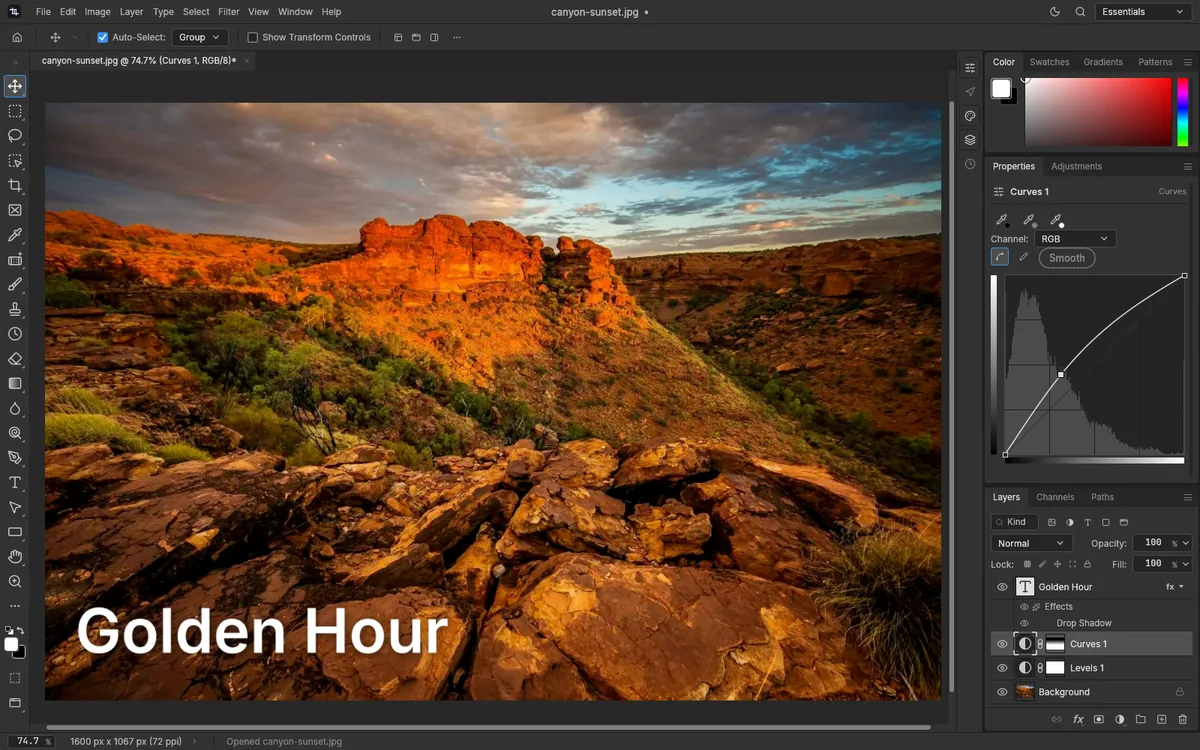
- Choose Layer > New Adjustment Layer > Curves… or Levels… A layer called Curves 1 or Levels 1 appears above the active layer, with its own mask.
- Its controls appear in the Properties panel. Change them and the photo updates as you go.
- To change it later, click the layer's thumbnail in the Layers panel. Clicking the name can select its mask instead, and then Properties shows the mask.
- Uncheck Adjustment visible in Properties to compare the photo with and without it.
File > Save keeps the adjustment layers in the PSD. We changed the Levels and Curves layers of a sample PSD, saved it and opened it again in PhotopixPro, and it looked identical. To limit an adjustment to part of the photo, paint on its mask, as our layer mask guide explains.
Which one should you use?
- A dull or hazy photo: Levels. Move the black and white sliders to the ends of the histogram.
- More contrast without losing the highlights: Curves, with a gentle S.
- Only the midtones lighter or darker: Curves, with one point in the middle.
- A change you may want to undo next week: either one, as an adjustment layer.
When you're happy, File > Export > Export As… gives you a JPG or PNG. Working on a phone photo? Our HEIC to JPG page covers the export. Shooting in RAW? Open the RAW file online first, then adjust it the same way. On a PSD, the PSD editor page lists what else you can change.
Shortcuts in the browser
The shortcuts are the same as in Photoshop: Ctrl+L for Levels and Ctrl+M for Curves, with Cmd on a Mac. Browsers keep some shortcuts for themselves, and our tests sent the keys straight to the page, so we can't yet promise that a browser lets these two through. If the dialog doesn't open, use the menu. Our list of Photoshop shortcuts in the editor has the rest.
How we checked this guide
We tested these steps on October 17, 2026, in Chromium, on a test image with a sky, hills and a strip of 12 grays, measuring the grays before and after each change. In the Levels dialog we moved the white point; the black point we moved in a Levels adjustment layer. We also edited the Levels and Curves adjustment layers of a sample PSD, saved it and opened it again. We didn't test the middle slider of Levels, Auto, the separate color channels, the pencil, the other 14 kinds of adjustment layer or the shortcuts on a Mac.
