What a layer is
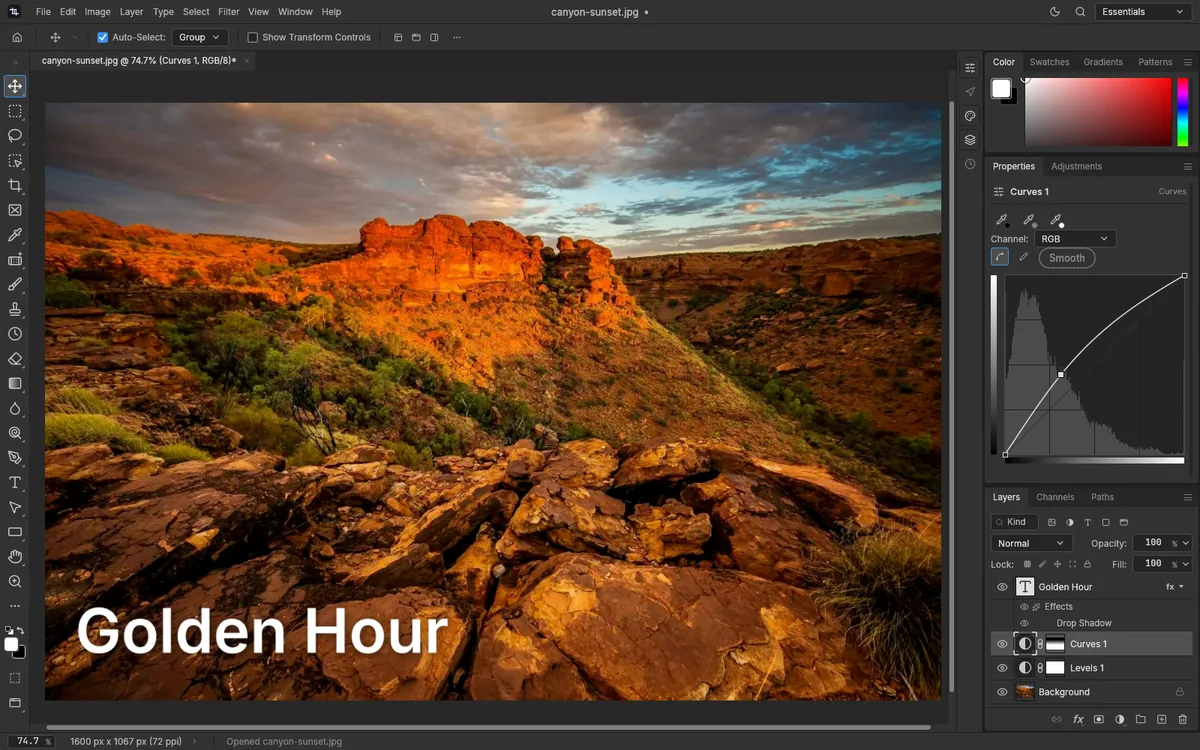
A document is a stack of layers, read from the top down. Where a layer is transparent, you see the layers underneath. The usual kinds:
- Pixel layers: a photo, or anything you paint.
- Text layers, made with the Horizontal Type Tool (T), which stay editable.
- Adjustment and fill layers, such as Curves or a solid color, which change or cover what's below. Our guide to Curves and Levels shows how to add one.
- Groups, folders that hold several layers.
A photo opens as a single layer called Background. A PNG with transparency opens as Layer 0 instead. A PSD opens with all its layers, so you can edit a PSD online layer by layer.
Four layers of one document, pulled apart. Seen from the front, they make a single picture.
- Shape layer A sun drawn as a shape, on top of everything else
- Text layer The words "Golden hour", which stay editable
- Adjustment layer Curves, changing the colors of the photo below without touching its pixels
- Background The original photo, at the bottom of the stack
The Layers panel
Everything in this guide happens in the Layers panel. If you can't see it, choose Window > Layers. Each row shows an eye, a thumbnail and the layer's name. The panel also has a blend mode menu, which says Normal, and an Opacity box next to it.
The buttons at the bottom, from left to right: link layers, Add a layer style, Add a mask, Create new fill or adjustment layer, Create a new group, Create a new layer and Delete layer. Right-click a layer for a menu with Duplicate Layer…, Merge Down, Add Layer Mask and more.
Add a new layer
- Click Create a new layer at the bottom of the Layers panel. An empty layer appears above the selected one, called Layer 1, Layer 2 and so on.
- To name it as you make it, choose Layer > New > Layer… instead. The New Layer dialog asks for a Name, a Color, a Mode and an Opacity; click OK.
- To copy a layer, select it and choose Layer > New > Layer via Copy (Ctrl+J). The copy goes on top, with "copy" added to its name and the same opacity.
The shortcut for Layer… is Ctrl+Shift+N, as in Photoshop, but Chrome keeps that one for a new incognito window. Use the button or the menu.
Rename, reorder and hide layers
- Rename: double-click the layer's name, type the new one and press Enter. Double-clicking the empty part of the row opens Layer Style instead.
- Reorder: drag the row up or down and drop it between two others. Or use Layer > Arrange > Bring Forward (Ctrl+]) and Send Backward (Ctrl+[) to move it one step.
- Hide: click the eye. The layer disappears from the picture and its name turns gray; click again to show it.
Opacity and blend modes
Opacity sets how see-through a layer is. Select the layer, type a number such as 50 in the Opacity box and press Enter: the layer shows at half strength over the ones below.
Blend modes decide how a layer mixes with what's below. The menu next to Opacity has the 27 modes Photoshop has, such as Multiply, which darkens, Screen, which lightens, and Overlay, which adds contrast. In our test, Overlay changed the colors exactly as its formula says it should. The mode you choose shows at the right of the layer's row.
Group layers
- Click one layer, then Shift+click another to select both.
- Choose Layer > Group Layers (Ctrl+G). A folder called Group 1 appears with the layers inside, in Pass Through mode.
Click the group's eye to hide all its layers at once. There's also a Create a new group button at the bottom of the panel.
Merge layers
Select the upper of two layers and choose Layer > Merge Layers (Ctrl+E): it merges into the layer below, which the right-click menu calls Merge Down. With a group selected, the command becomes Merge Group. Merged layers can't be split again later, so keep a copy of anything you may want to change; Edit > Undo (Ctrl+Z) takes it back straight away.
To merge everything you can see, choose Layer > Merge Visible (Ctrl+Shift+E): hidden layers stay apart, still hidden. Layer > Flatten Image goes further. It leaves a single Background layer, throws away hidden layers without asking and fills transparent areas with white. If that wasn't what you wanted, Edit > Undo brings the layers back.
The Background layer
The Background layer of a photo can't take a layer mask. To get a normal layer, choose Layer > New > Layer from Background…, or copy it with Ctrl+J and work on the copy. If you click Add a mask with the Background selected, the editor turns it into Layer 0 first and adds the mask. Our guide to how layer masks work picks up from there.
Saving keeps the layers; exporting merges them
- File > Save downloads a PSD with all your layers, which you can open here again and keep editing.
- File > Export > Export As… makes a PNG, JPG or WebP. Those formats have no layers, so the visible layers are merged into one picture. A JPG also has no transparency: transparent areas come out white.
- Layer > Quick Export as PNG saves only the selected layer, trimmed to its content and with transparency. The PSD to PNG page explains it.
How we checked this guide
We tested these steps on October 17, 2026, in Chromium, with a photo and a few painted strokes on separate layers: new layers with the button and with the New Layer dialog, renaming, dragging and moving with the shortcuts, opacity, the Overlay blend mode, grouping, the eye, duplicating and merging, including Merge Visible and Flatten Image with a hidden layer. We opened the New Layer dialog with its shortcut, not from the menu. We didn't test Window > Layers, Ungroup Layers, Bring to Front, Send to Back, the Fill box or the shortcuts on a Mac. Our test tool sends shortcuts straight to the page, so if one doesn't respond in your browser, use the menu instead.
